ErrorAlways wins
v0.2.6 · Native macOS utility
Your AI work,
still breathing.
usAIge keeps usage limits and Codex task health in one quiet floating rail. One glance tells you whether agents are running, finished, waiting, or broken.
Live product capture
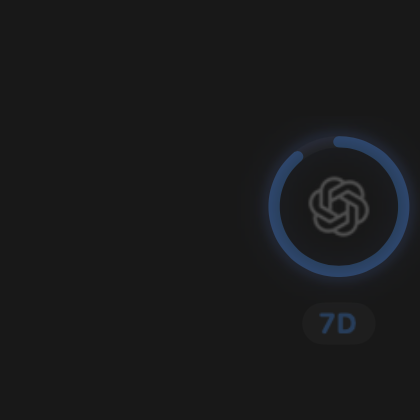
One light for every task.Breathes from a thin halo to a stronger status glow.
Up to 100 active tasksClick back to the task10–100% resting opacity50–250% HUD scale
Aggregate agent status
One circle.
Every session.
usAIge watches up to 100 active Codex tasks and turns the highest-priority state into one breathing glory behind the Codex limit ring.
Priority order
Recent completionFresh result
Needs inputYour turn
RunningAgent at work
When the light breathesClick the ring to reopen the exact task creating that color.
→When there is no active taskClick the same logo to return to the AI tool.
Every usage effect
Quiet at rest.
Clear on demand.
The compact rail stays readable without becoming another dashboard to manage.
Live dual windows
See Codex’s short and weekly limits together, with real reset times and remaining percentages.
Priority color system
Pink error, green recent completion, yellow needs input, blue running, and no light when idle.
Critical quota signal
Five usage bands culminate in a focused deep-red remaining arc while the unused track stays transparent.
Hover focus
The rail returns to full opacity, reveals controls, refreshes stale data, and shows detailed reset context.
Your size and opacity
Set resting opacity from 10–100% and scale the compact rail from 50–250%.
Local plus connected tools
Read local Codex automatically and add compatible read-only HTTPS sources with Keychain tokens.
Current product
Only what you
choose to see.
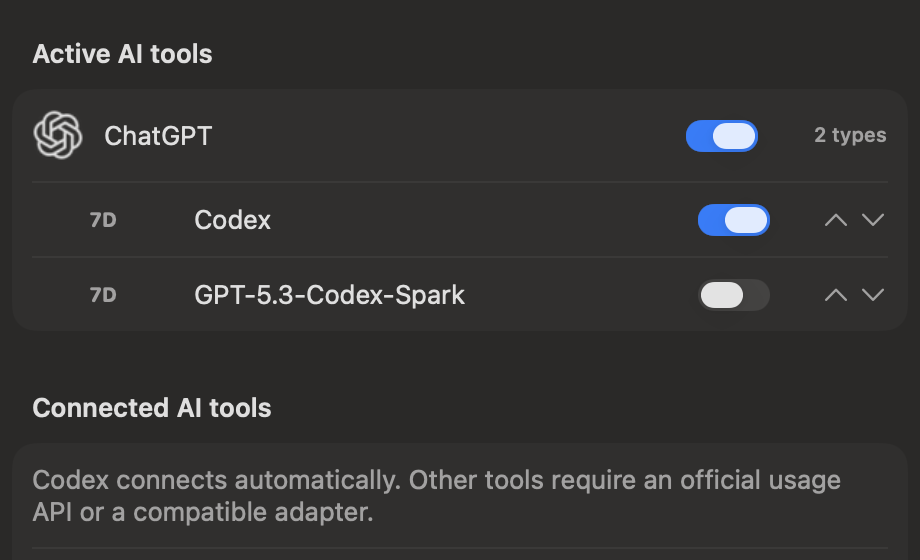
Use the native Settings window to pick tools and usage types, reorder them, and tune the rail for your desk.
Privacy without fine print
You choose
every source.
usAIge reads local Codex state and only the remote endpoints you explicitly add. Optional iPhone Sync relays the latest normalized percentages and reset times—never provider credentials, prompts, or task content.
- ✓ No browser cookies read
- ✓ No separate account login
- ✓ Remote tokens stay in Keychain
- ✓ Relay data is deleted when unlinked
- ✓ No app activity tracking
Ready when you are
One small rail.
Zero surprises.
- 1Download the alpha
Get the newest macOS disk image and verified checksum.
- 2Drag into Applications
Open the disk image and move usAIge to the Applications shortcut.
- 3Control-click to open once
Choose Open on first launch, then optionally enable startup in Settings.